

Set Up Attribute Sets and Attributes
An attribute set groups the attributes one kind of product carries: a sofa has a depth, a lamp has a bulb type. These steps open a set, show how attributes get into it, and create a new attribute with a list of options to choose from. The product form calls the set Feature set, after the backend model.
Before You Start
Section titled “Before You Start”- You are signed in with the Editor role or a higher one (Manager, Administrator). Sign In and Find Your Way Around covers signing in.
- The PIM panel is enabled.
- An attribute set exists. The demo data has Furniture.
-
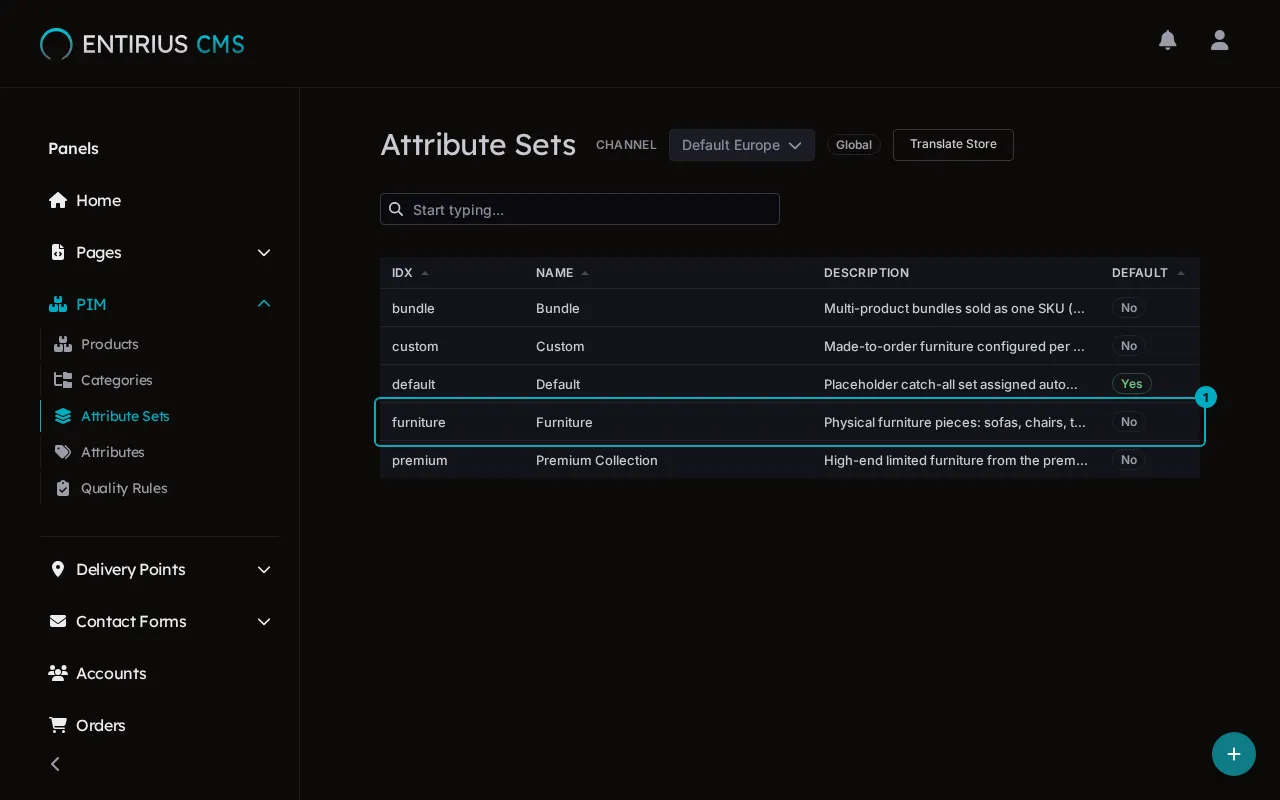
In the sidebar, open PIM and select Attribute Sets. Each row is one set; the Default column shows the set a product gets when it is imported without one. Open a set by its row (1).
-
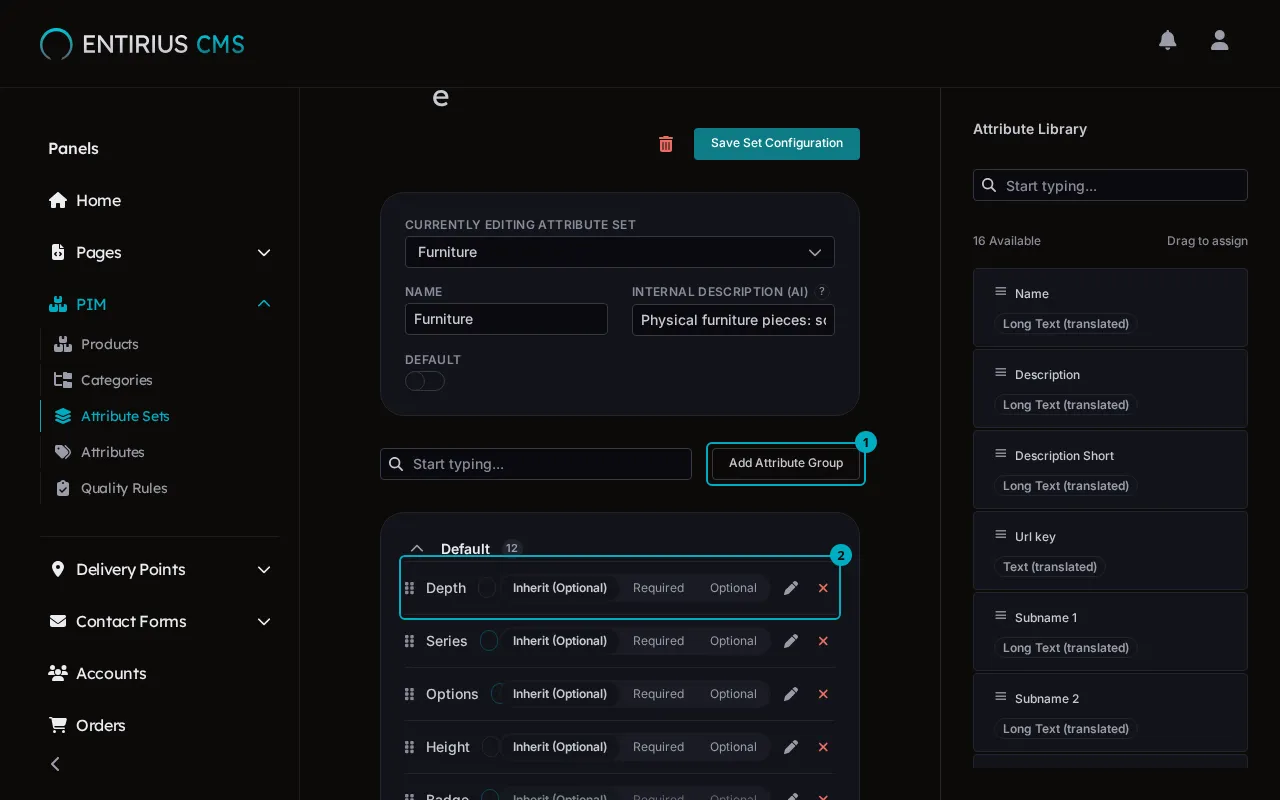
The set lists its attributes in groups. Add Attribute Group (1) starts a new group: type its name and select Create. Each row (2) is one attribute of the set, with a three-way control: Inherit keeps the attribute’s own setting, Required and Optional override it for the set. The Attribute Library on the right holds the attributes the set does not carry yet; drag one onto a group to add it.
-
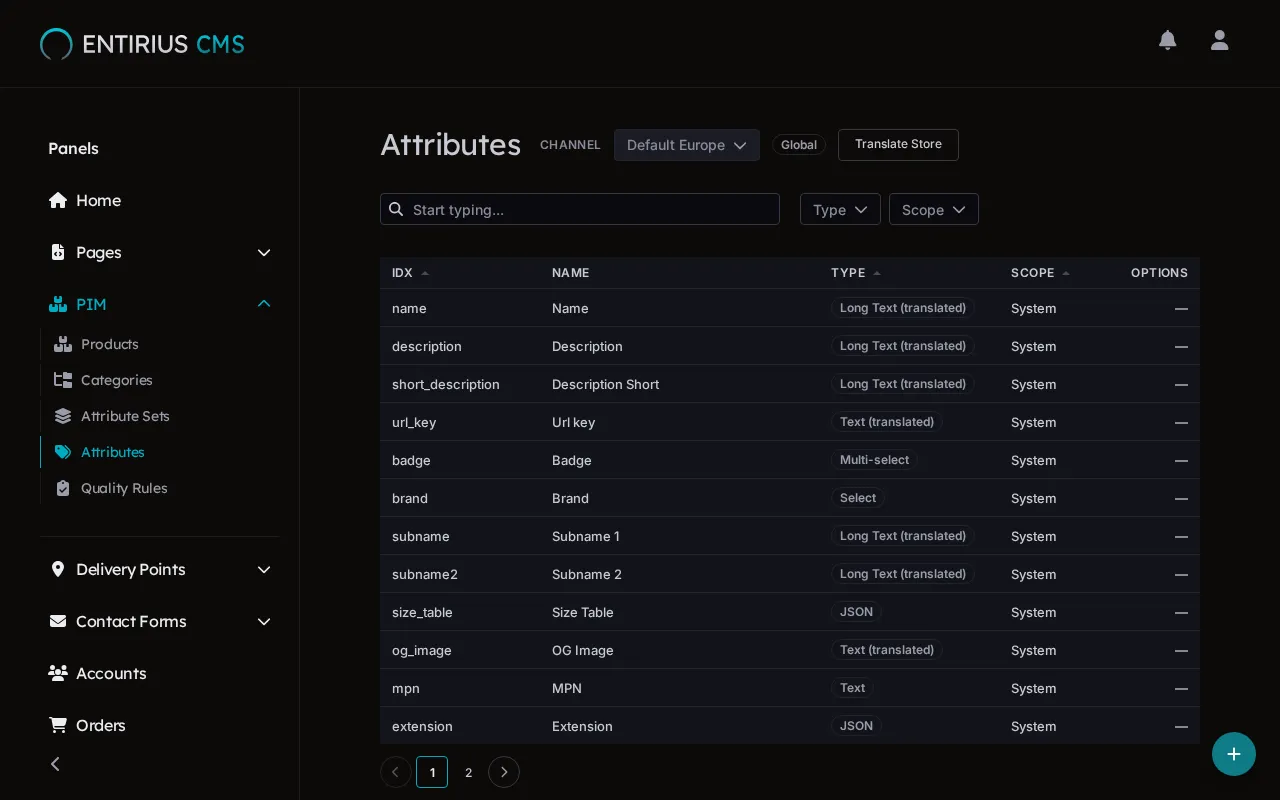
Select Attributes in the sidebar. The list shows every attribute with its code, name and Type. The add button sits in the bottom right corner.
-
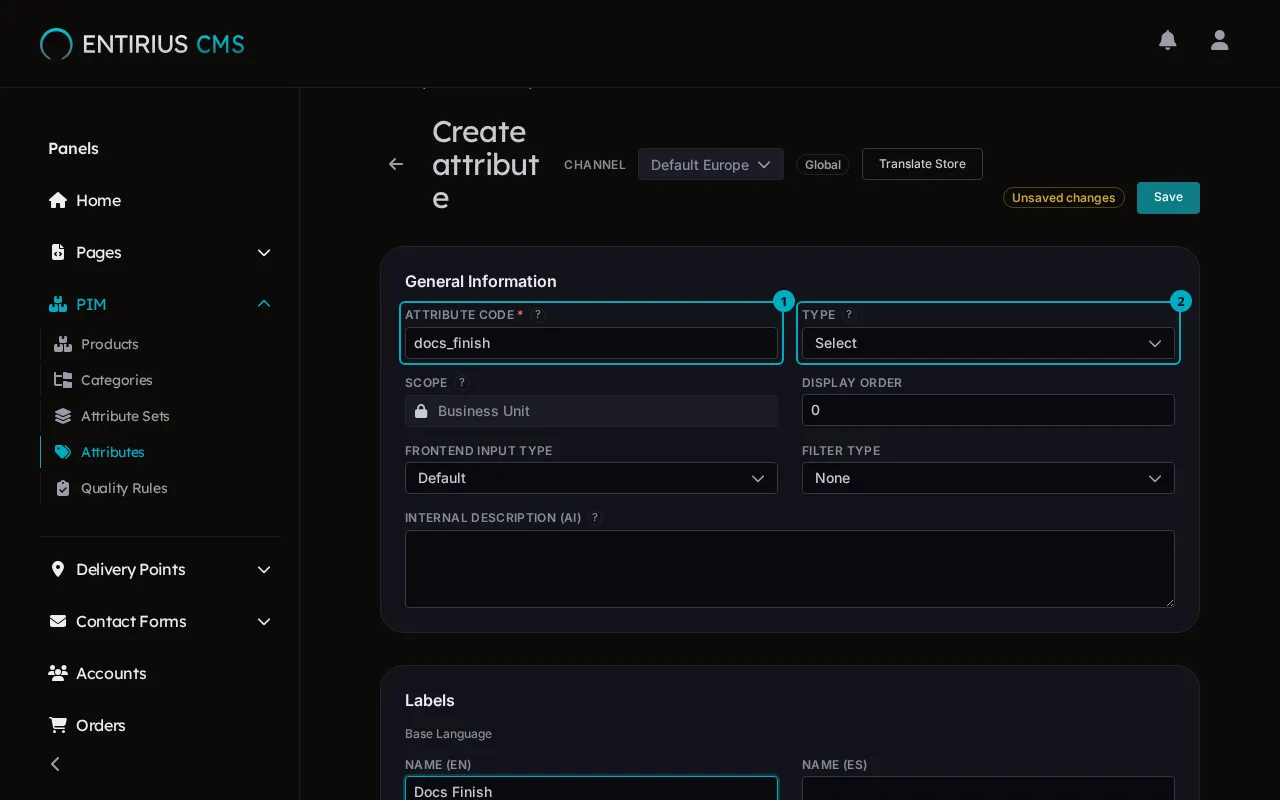
Select the add button, then Create attribute. Type the Attribute Code (1): it identifies the attribute in API payloads and is fixed after the first save. Choose the Type (2), then type the Name under Labels. With the type Select, an error notice about a missing attribute can appear before the first save; it goes away and the save works.
-
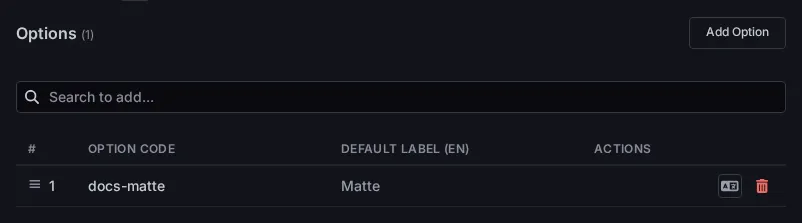
Select Save. An attribute of the type Select or Multi-select now shows Options: select Add Option, type the Option Code and the Default Label, and select Save. Repeat for each value the attribute offers.
Result
Section titled “Result”The attribute shows in the Attributes list and in the Attribute Library of a set, ready to be dragged onto a group.
Manage categories: the tree, a new category and its products