

Find a Product and Resolve Duplicates
Before you add a product, check that it is not there already. The Atlas panel searches your catalog and the supplier feeds in one go, and lists the products that share an EAN so that you can merge them.
Before You Start
Section titled “Before You Start”- You are signed in with the Manager role or a higher one (Administrator). Searching and reading the groups works for every role; merging does not. Sign In and Find Your Way Around covers signing in.
- The Atlas panel is enabled. Find product shows only when the product lookup module is installed.
- Supplier feeds have been imported. The screens below show the demo supplier feeds.
-
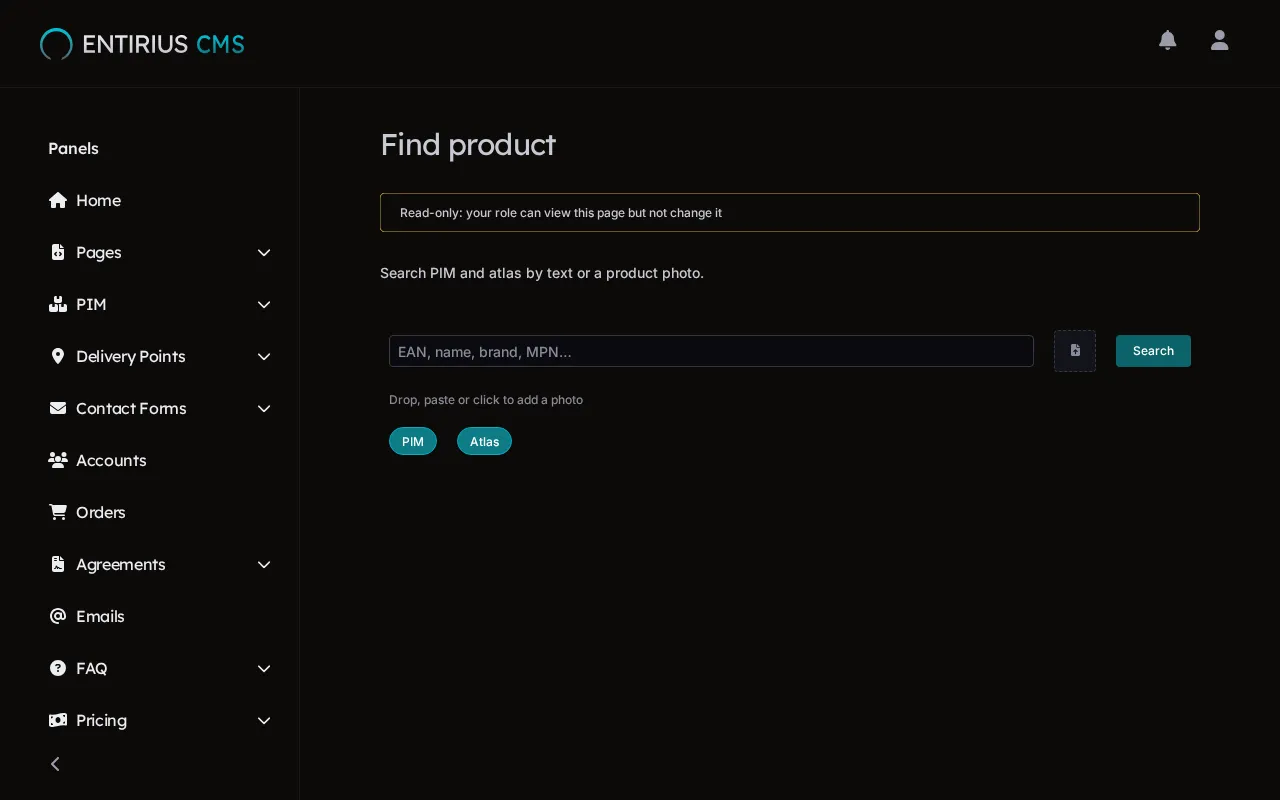
In the sidebar, open Atlas and select Find product. The field takes an EAN, a name, a brand or an MPN. The PIM and Atlas chips choose where to look: your catalog, the supplier feeds, or both. The read-only notice above the field shows for every role; searching works. Searching by photo needs a separate image service and is not covered here.
-
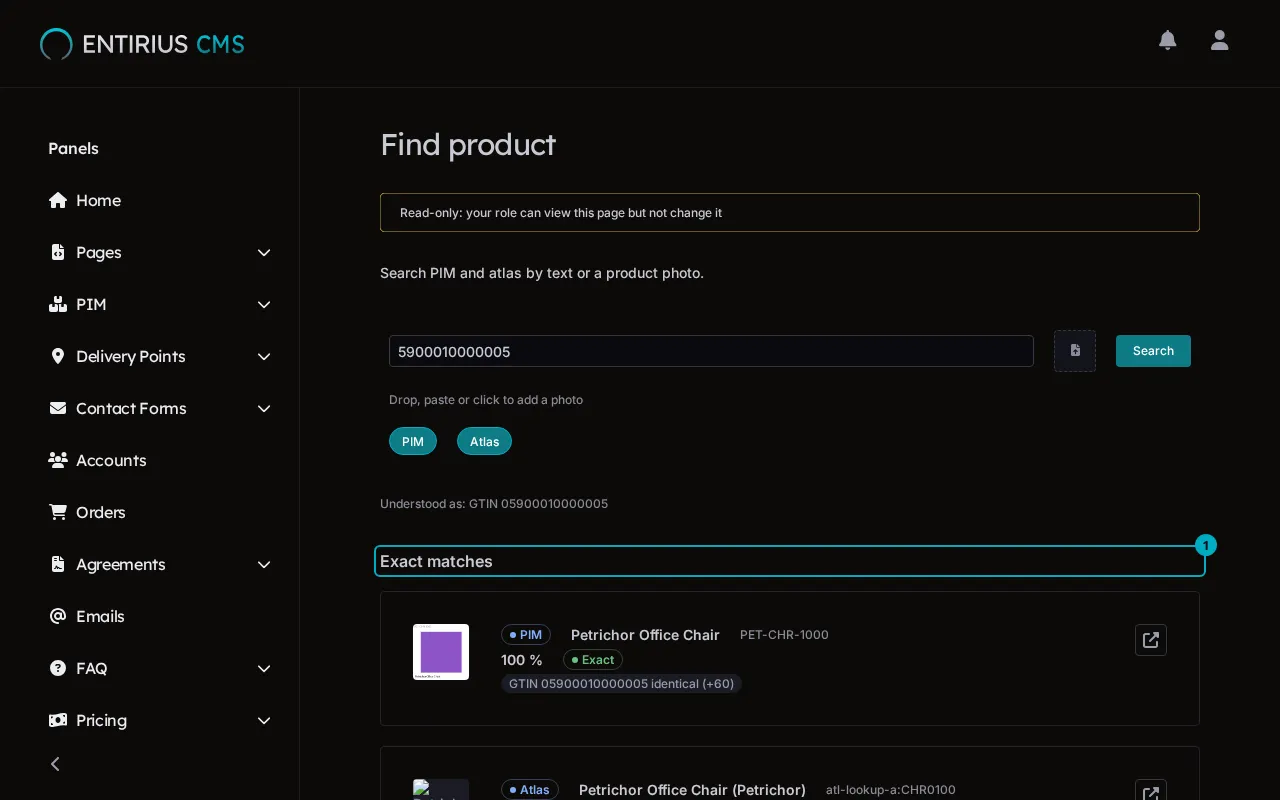
Type an EAN and select Search. Exact matches (1) lists the records with that EAN, each tagged PIM or Atlas. A name alone puts its hits under Similar: they look alike, and you decide whether they are the same product.
-
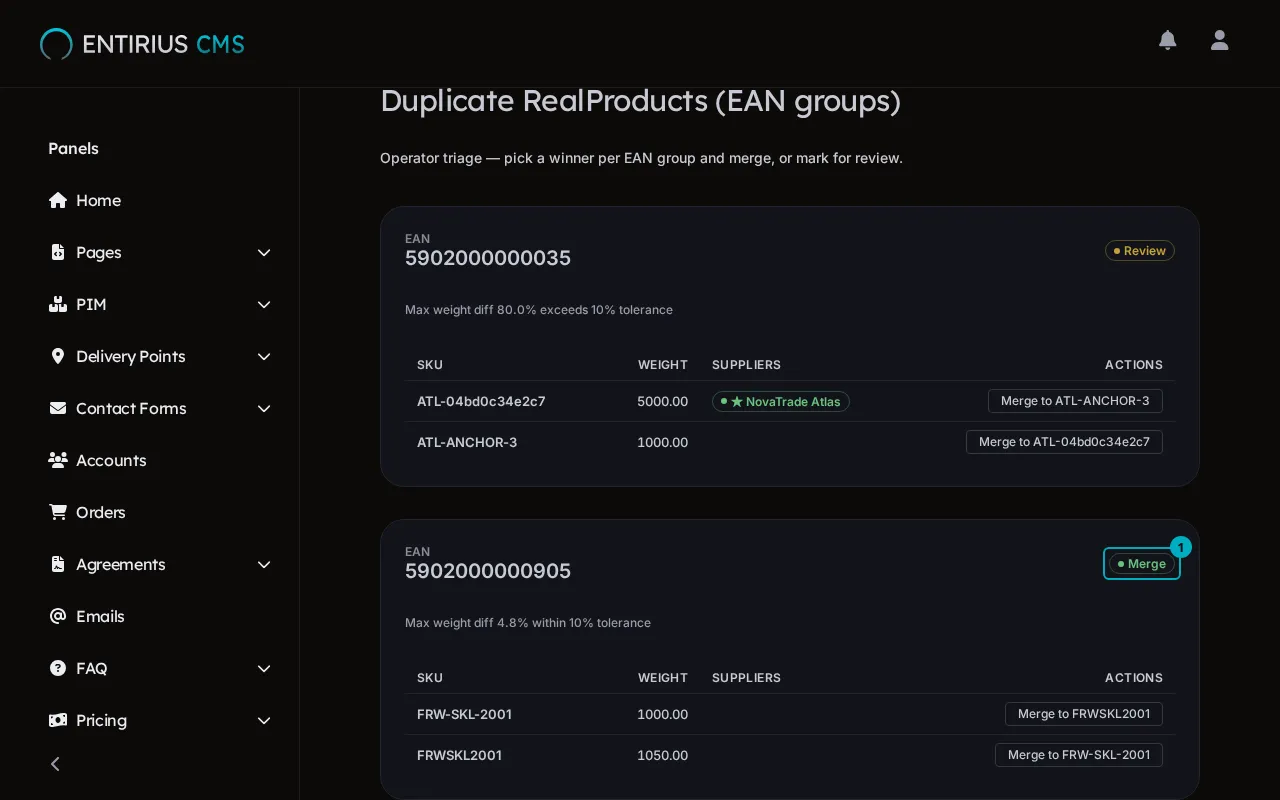
Select Duplicates in the sidebar. The Duplicate RealProducts (EAN groups) page shows one card per EAN that more than one product carries. The suggestion (1) reads Merge when the weights of the products agree and Review when they are too far apart or one of them has no weight.
-
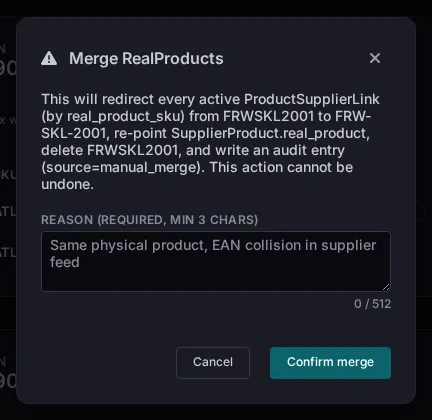
Each row has a Merge to … button that names the product that stays. It opens Merge RealProducts, which says what the merge does: every supplier link of the other product moves to the one that stays, the other product is deleted, and an audit entry is written. The merge cannot be undone. Confirm merge needs a reason of at least three characters. Select Cancel to leave both products as they are.
Result
Section titled “Result”You know whether the product exists and where. A group you cancelled stays on the Duplicates page until someone merges it. How a search is scored and where the verdicts come from: Product Lookup module docs.