

Leads: From Import to Reply
The Leads panel takes a list of companies and turns it into conversations. These steps import one company from a CSV file, send the mail drafted for it after your review, and find the reply. The first mail to a company never goes out before a person selects Send.
Before You Start
Section titled “Before You Start”- You are signed in with the Manager role or a higher one (Administrator). Viewer and Editor can read the panel; importing, reviewing and sending need Manager. Sign In and Find Your Way Around covers signing in.
- The Leads panel is enabled, with both of its modules on: leads, and communicator for the Inbox.
- Outgoing mail is set up for the channel, and a mailbox that receives the replies. A broken outgoing mail setup shows as a failing check: Configuration Health.
- For AI drafts, the AI toolbox is configured. AI Toolbox lists which actions call it and what each does without it.
- A desktop browser. Import and Pipeline need at least 1024 px of width.
With an AI template the AI writes the draft anew for every company, so the text of your draft differs from the one in the pictures, which comes from a fixed template. The steps and the screens are the same.
-
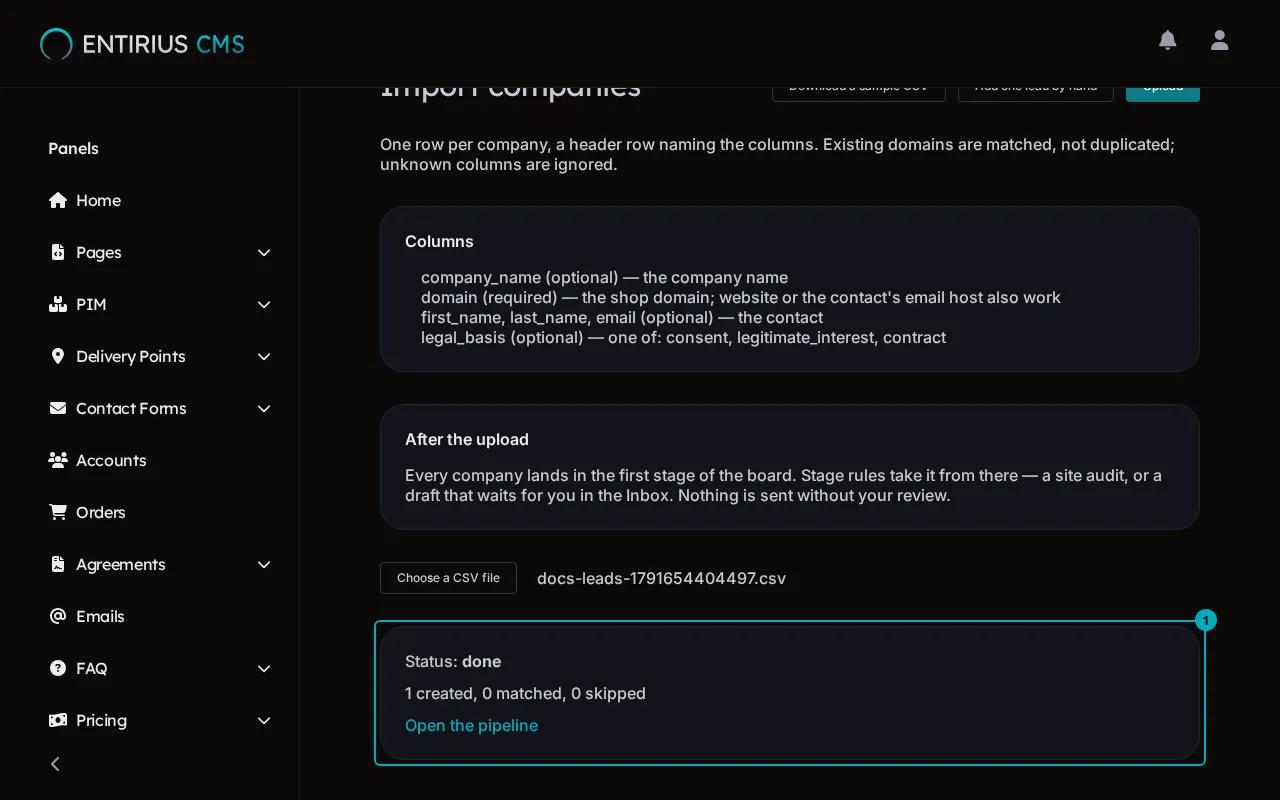
In the sidebar, open Leads and select Import. The Import companies page lists the columns a file may carry, one row per company under a header row:
company_name(optional): the company namedomain(required): the shop domain;websiteor the host of the contact’s email also workfirst_name,last_name,email(optional): the contactlegal_basis(optional):consent,legitimate_interestorcontract
Download a sample CSV gives you a file with that header. A domain that already exists is matched, never added twice, and unknown columns are ignored.
-
Select Choose a CSV file, pick your file, and select Upload. The report (1) shows the Status and the counts of companies created, matched and skipped; a skipped row is listed with its row number. Open the pipeline takes you to the next step.
-
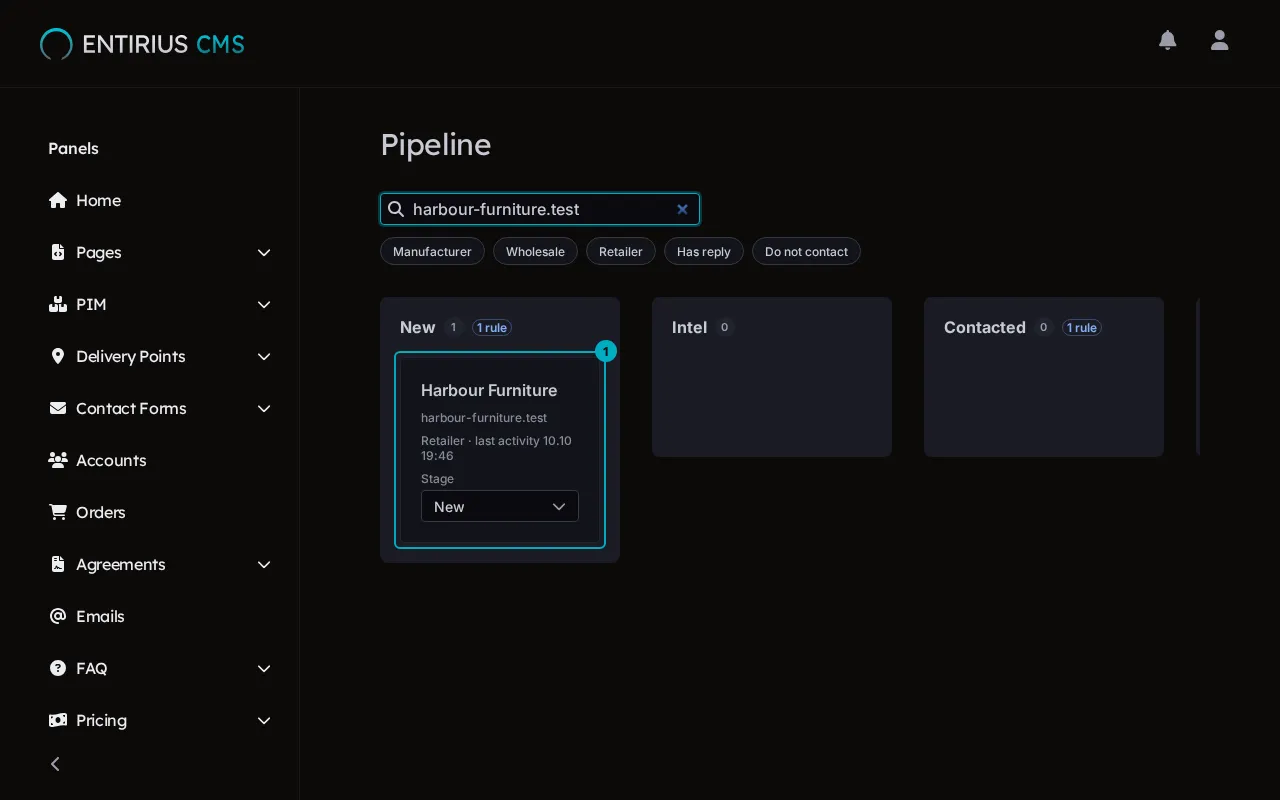
The Pipeline shows one column per stage. Type a name or a domain into Search name or domain and press Enter. Every imported company starts in the first stage (1). A badge next to a stage’s name counts its rules: a rule acts on a company in that stage, for example with a site audit or a draft. The Stage select on the card moves the company by hand.
-
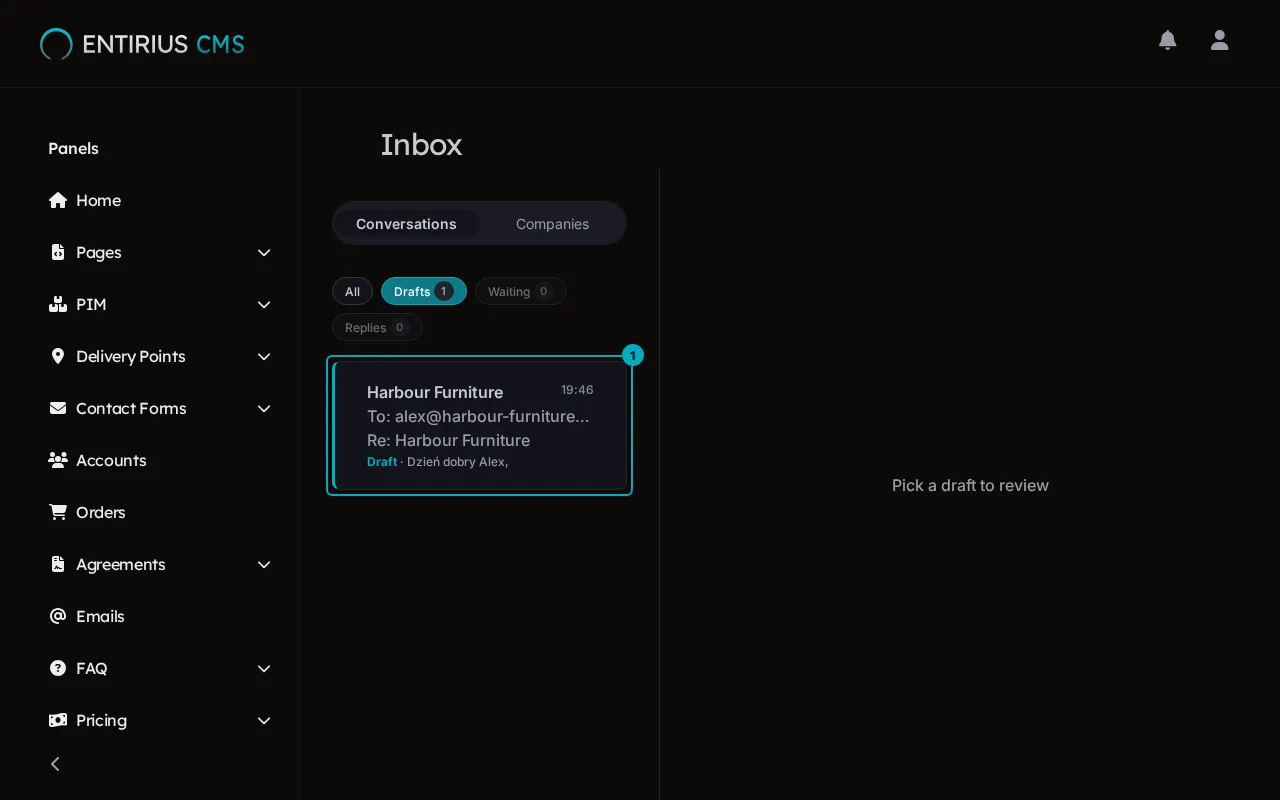
Select Inbox. A draft waits under Drafts when a stage rule has written one or when someone asked for one with Communicate on the company card. The row (1) shows the company, the recipient and the subject.
-
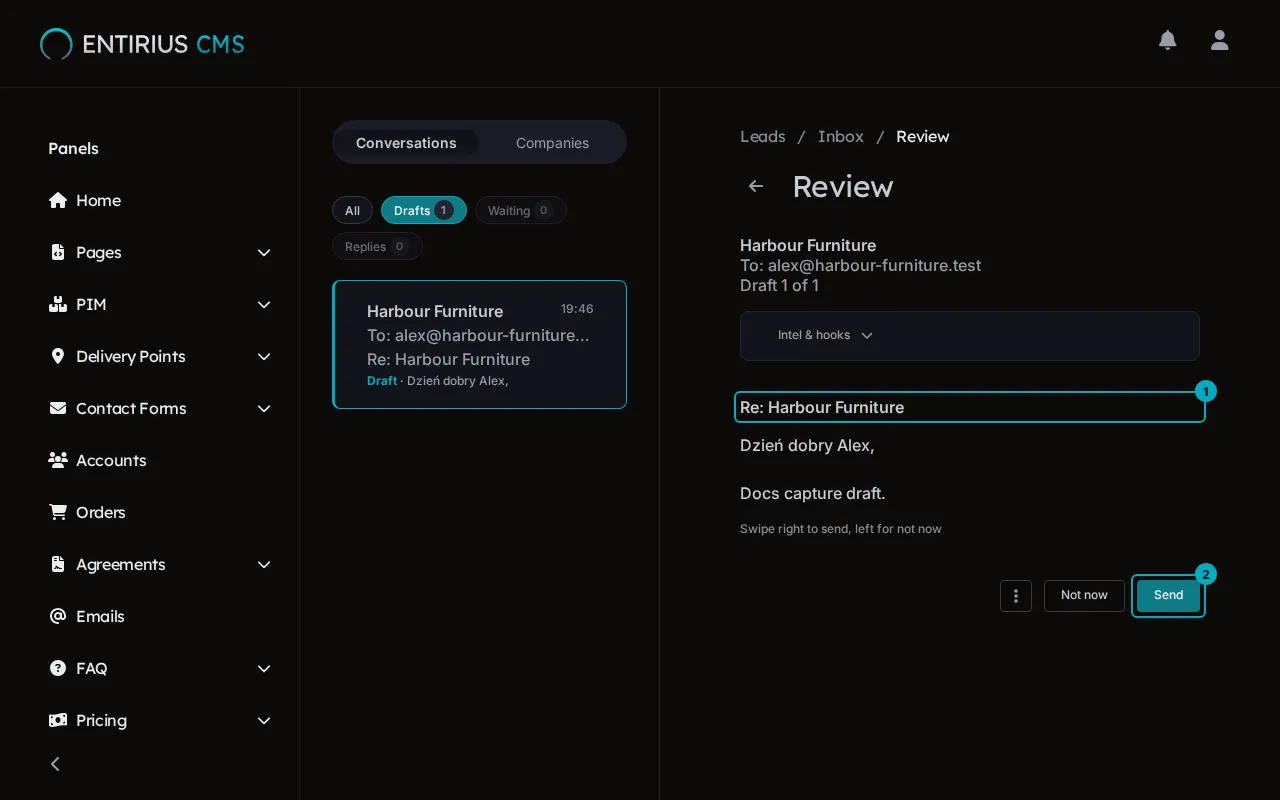
Select the row. Review shows the recipient after To, the subject (1) and the message. Read it as the recipient would. Send (2) accepts the draft; Not now skips it, and nothing is sent. The three-dot button (More actions) holds Rewrite with a note, which asks the AI for a new version, Edit, which opens Subject and Message for your own changes, and Skip company.
-
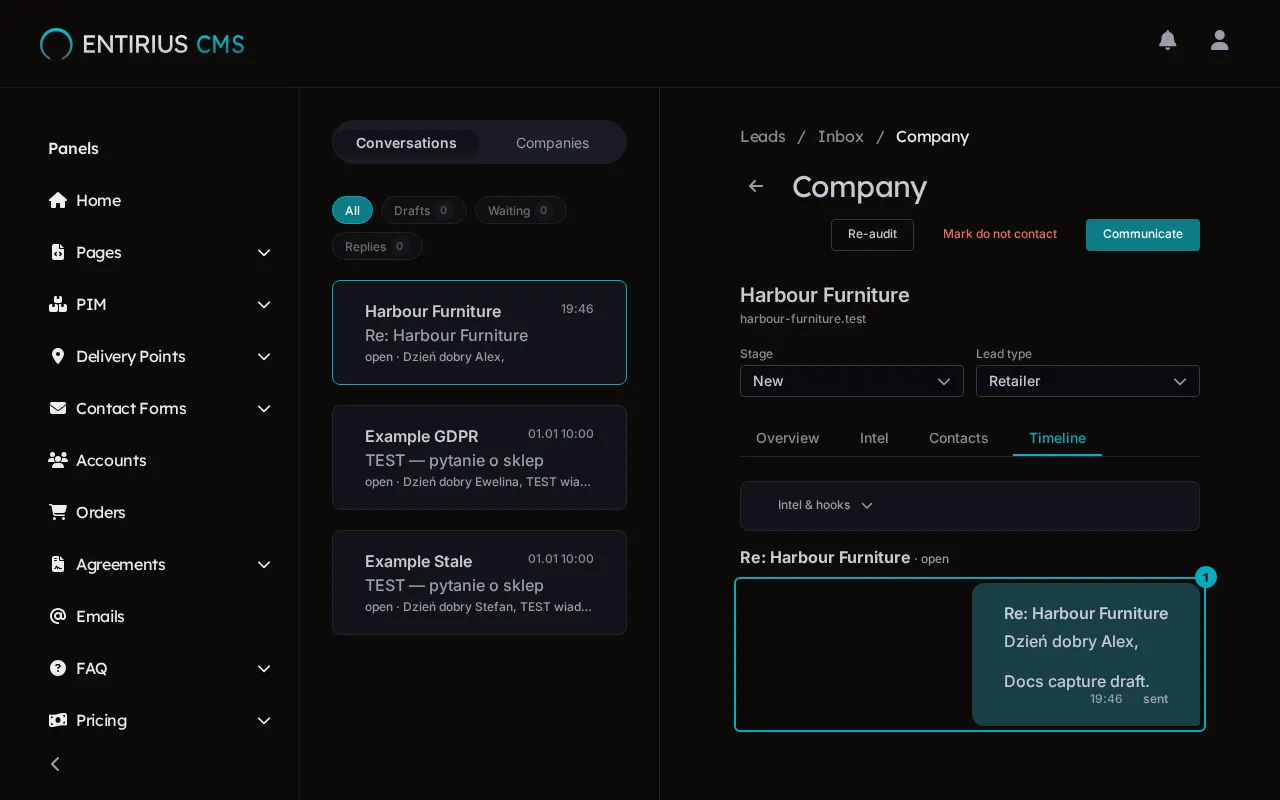
Select Send. The page confirms with Accepted and says when the mail leaves, for example waiting for the send window: mail goes out only inside the hours and the daily cap set under Settings, Send settings. Once it has left, select the company’s row in the Inbox. Its card opens on the Timeline tab, and the mail (1) is marked sent.
-
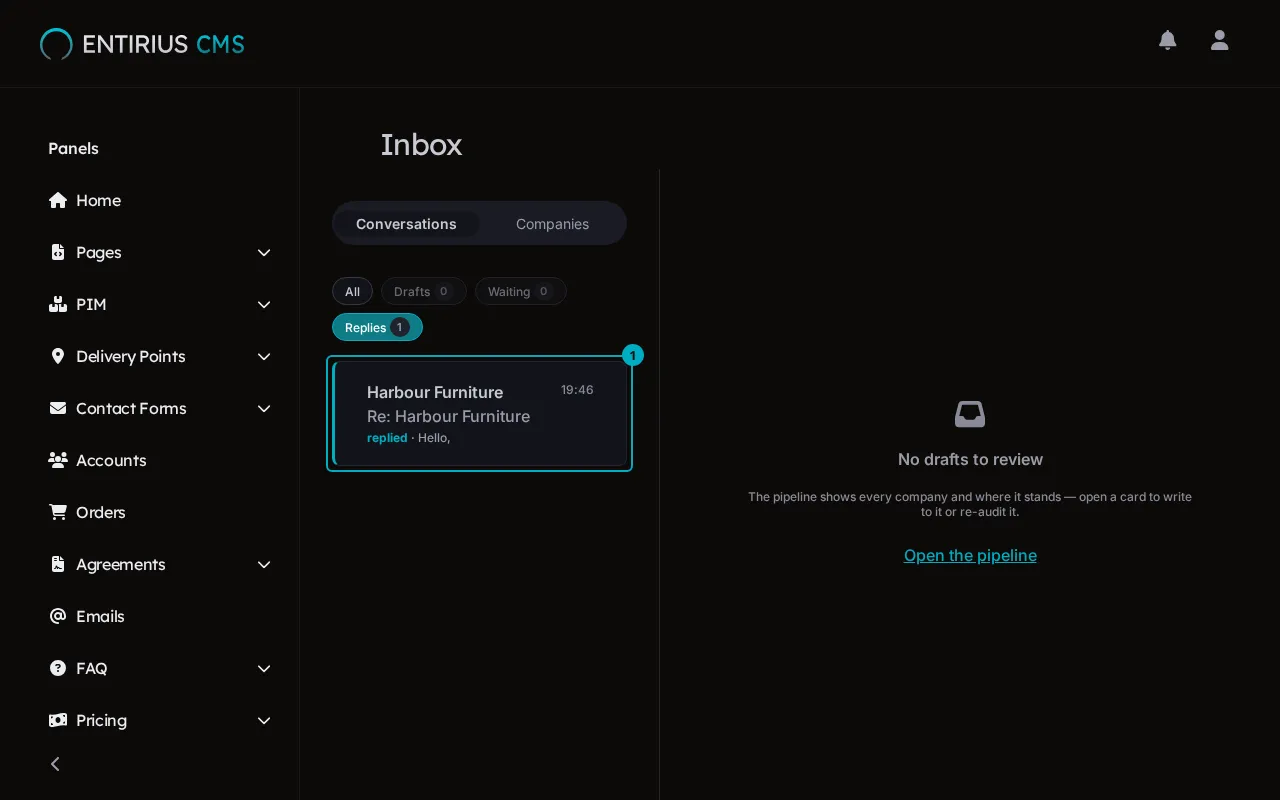
When the recipient answers, the reply is matched to its conversation. In the Inbox, select Replies. The row (1) is marked replied and shows the first line of the answer.
-
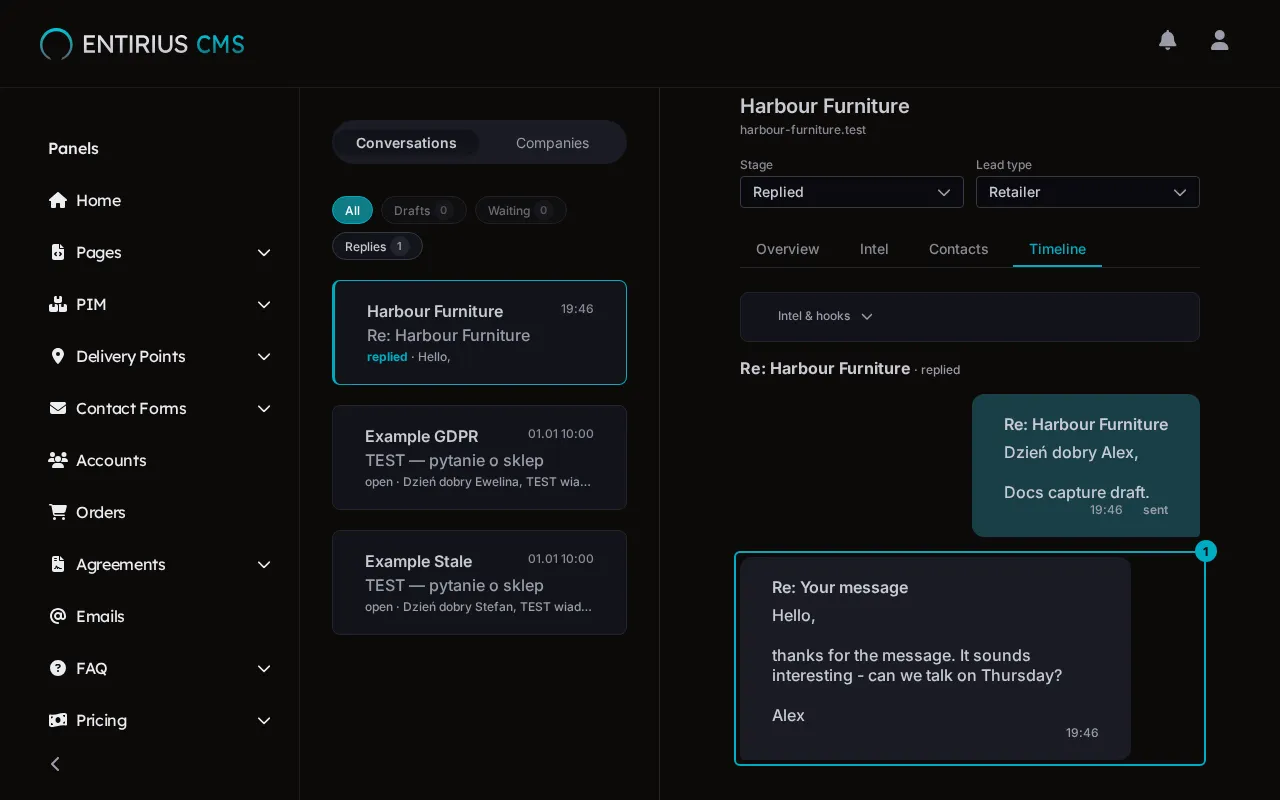
Select the row. The Timeline shows the reply (1) under the mail it answers.
Result
Section titled “Result”The company is in the pipeline with one conversation: the mail you approved and the reply to it, both on the company card. Further drafts for the company arrive under Drafts the same way.
Leads End-to-End Testing: the same funnel as an automated test, with the modules behind it