

Review an Order
Every order the storefront takes shows up in the Orders panel. These steps find one and read what the customer bought, how it ships and how it is paid.
Before You Start
Section titled “Before You Start”- You are signed in with the Viewer role or a higher one (Editor, Manager, Administrator). Sign In and Find Your Way Around covers signing in.
- The Orders panel is enabled.
- An order exists. On the local stack of the Quickstart, place one in the storefront first.
-
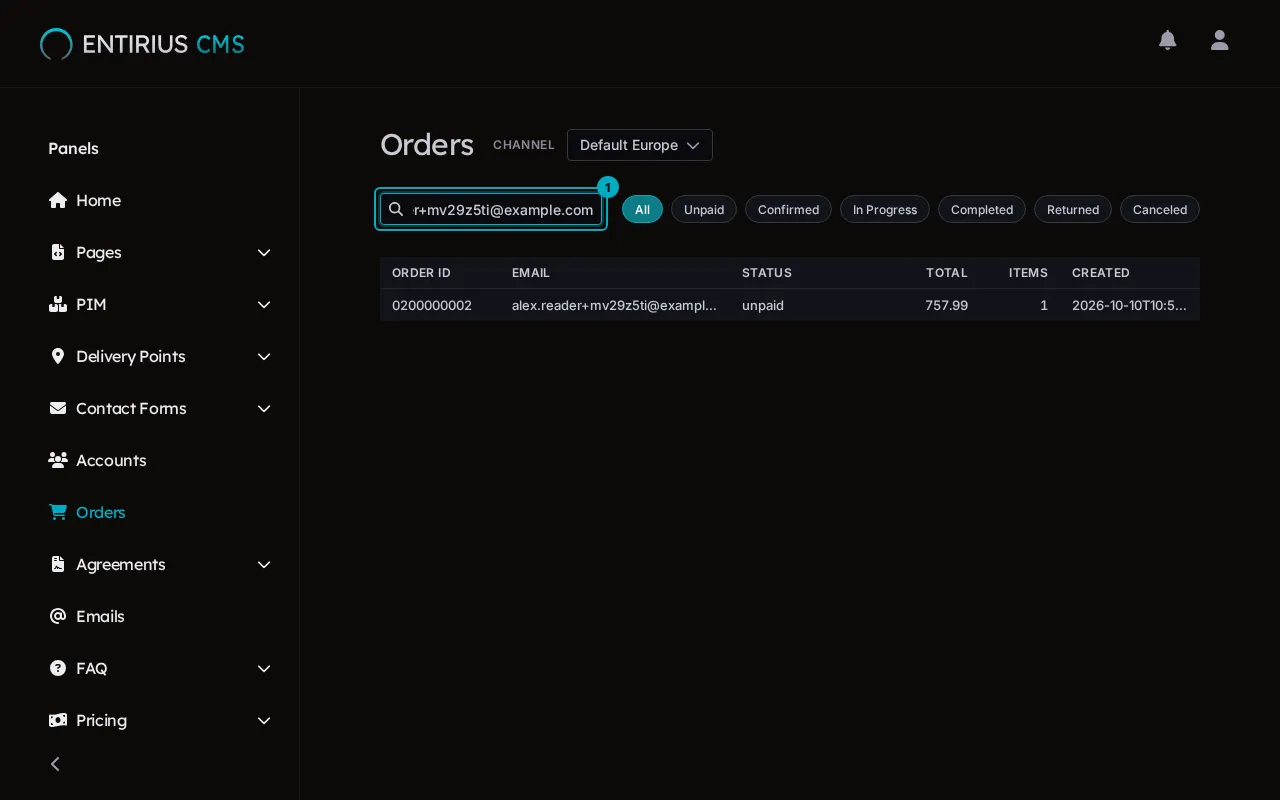
In the sidebar, select Orders. Channel next to the title picks the channel whose orders are listed. The search field (1) reads Search by email or order ID while empty; type the customer’s email. The chips next to it filter by status: All, Unpaid, Confirmed, In Progress, Completed, Returned, Canceled. Each row shows the Order ID, Email, Status, Total, Items and Created.
-
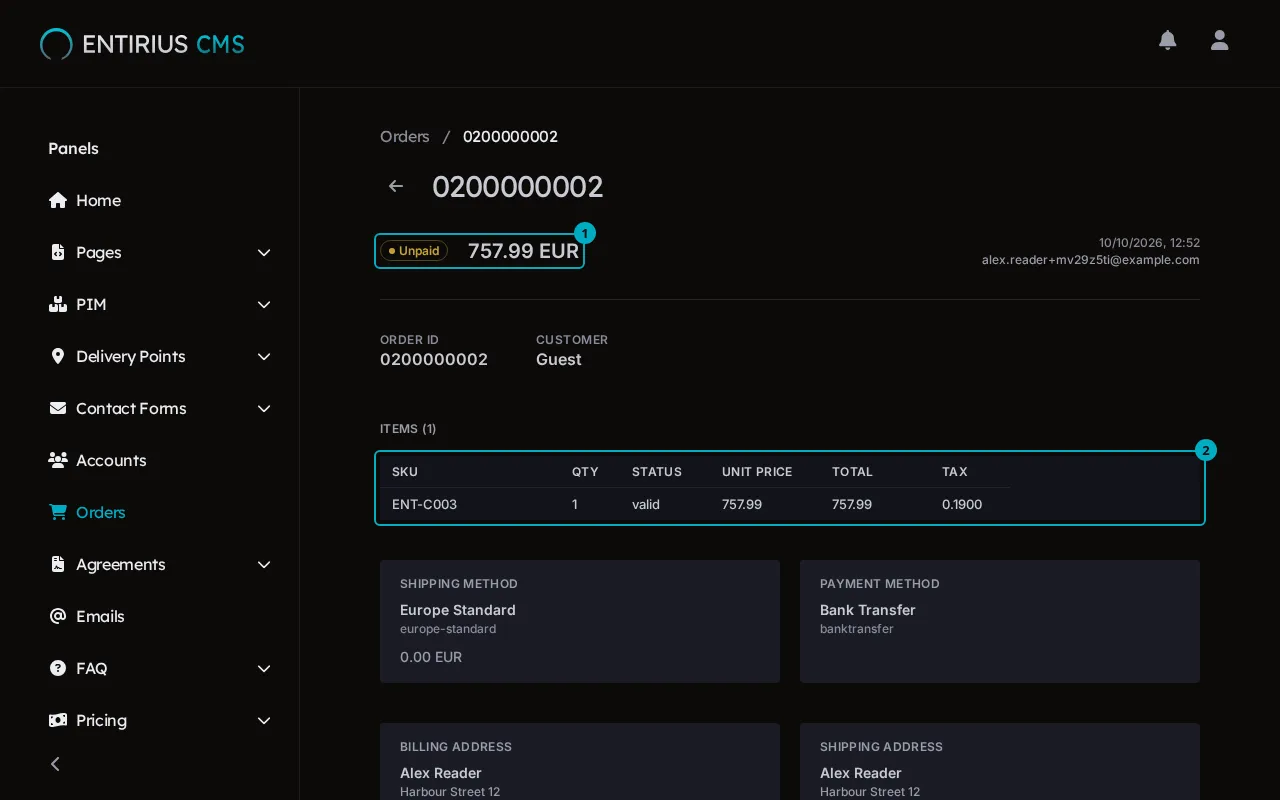
Select the row. The order opens with its status and total (1) at the top, the customer’s email on the right, and Items (2): one line per product with its SKU, quantity, price and tax.
-
Under the items, Shipping Method shows how the order ships and what shipping costs, and Payment Method shows how the customer pays. Billing Address and Shipping Address follow.

Result
Section titled “Result”You have the order’s status, contents, shipping and payment on one page. Nothing about the order changed. The path that produced it, from the cart to the payment: Commerce Journey.
Concepts: the parts of the platform and how they fit together