

Build a Content Page
A static page starts as a name, grows section by section, and goes live when you publish it. These steps take you from the empty page to a saved draft.
Before You Start
Section titled “Before You Start”- You are signed in with the Editor role or a higher one (Manager, Administrator). An Editor may also publish.
- The Pages panel is enabled.
-
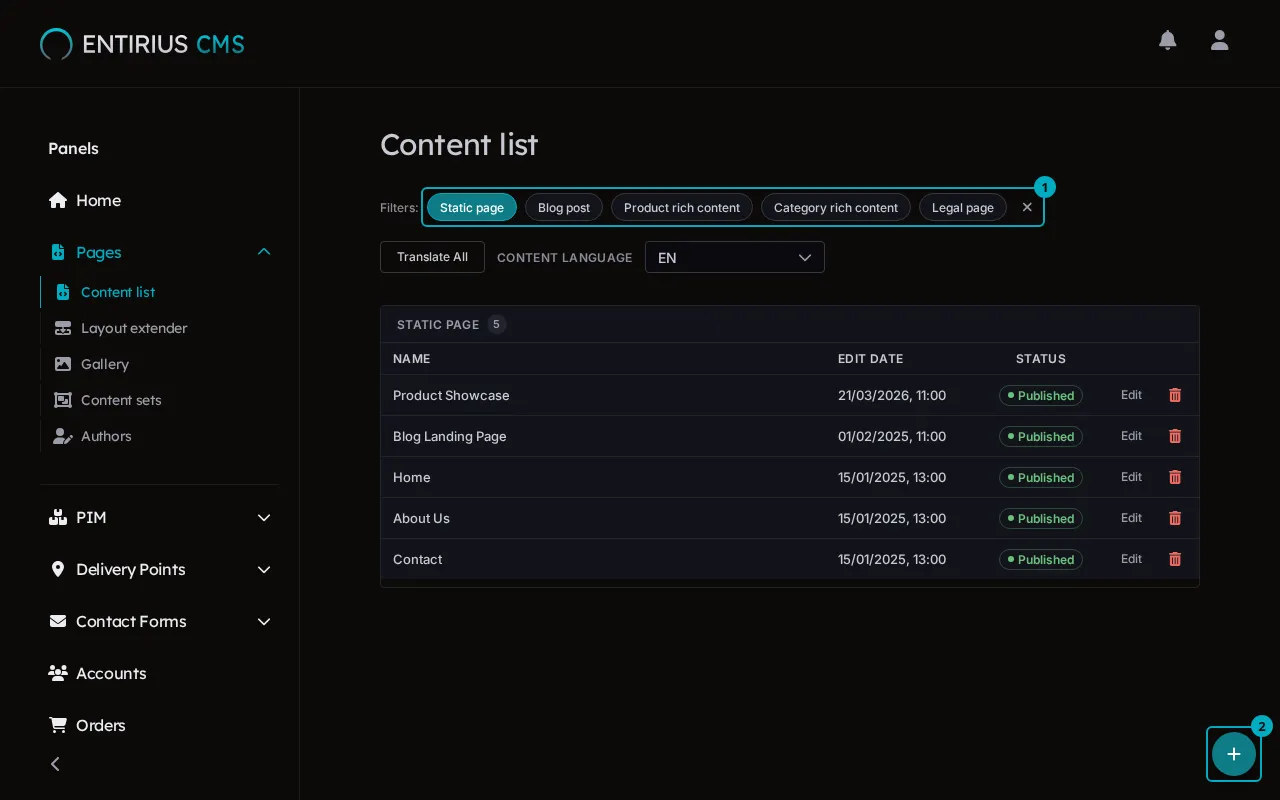
In the sidebar, open Pages and select Content list. In the filter row (1), select Static page to see the static pages only. The add button (2) sits in the bottom right corner.
-
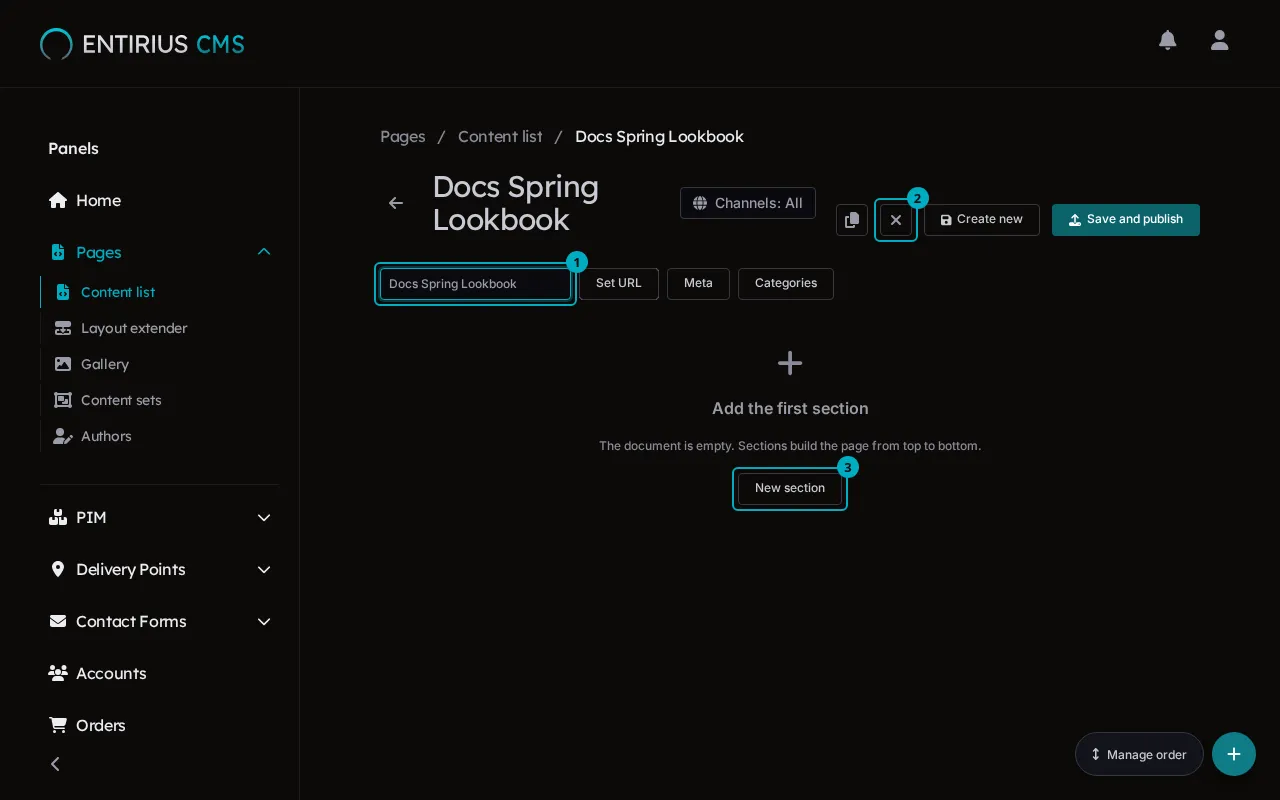
Select the add button, then Static page. The page name goes into the Custom doc. name field (1), which stays hidden until you select the Advanced icon button (2). While the name or the URL is missing, the button shows a warning icon and the hint Advanced: set the document name and URL; once open, it shows a close icon. Type the name and give the page its address with Set URL. New section (3) is where the next step starts.
-
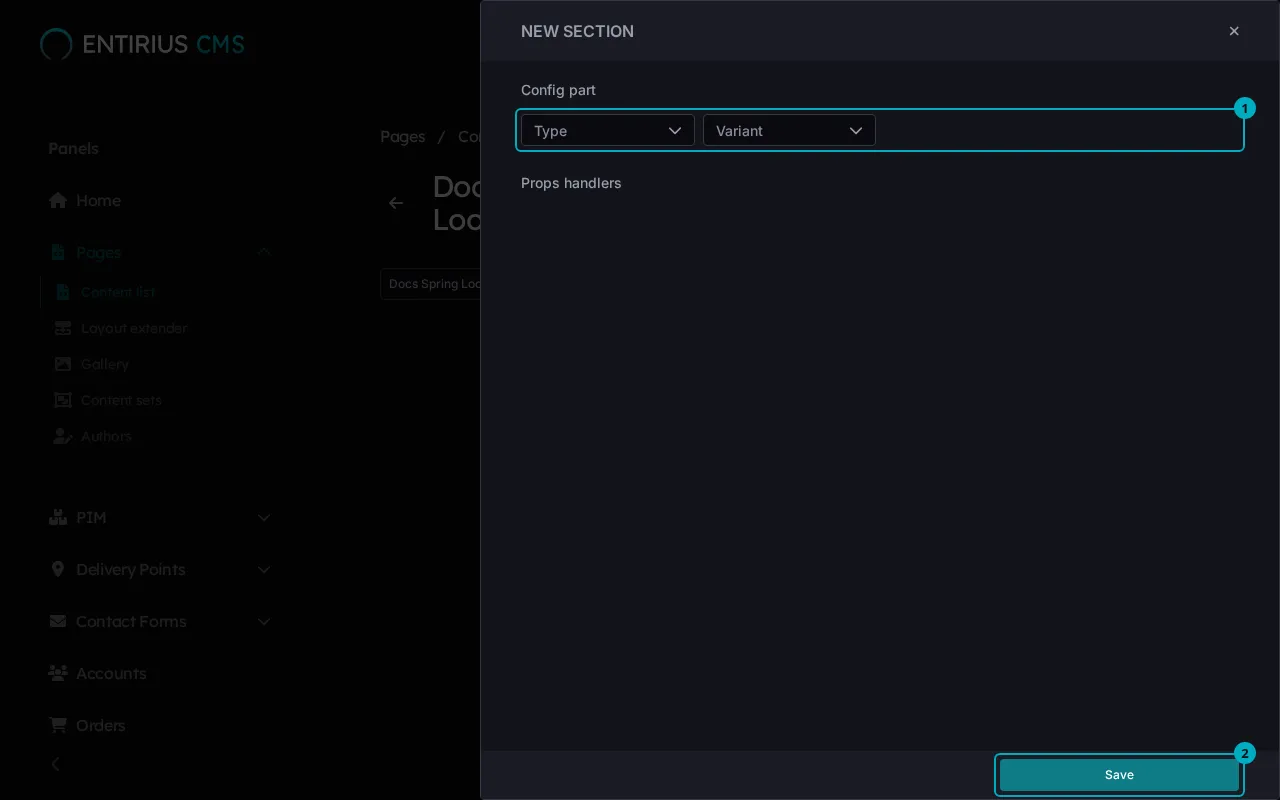
Select New section. The section panel opens: choose the section type and its variant under Config part (1), then Save (2) adds the section to the page.
-
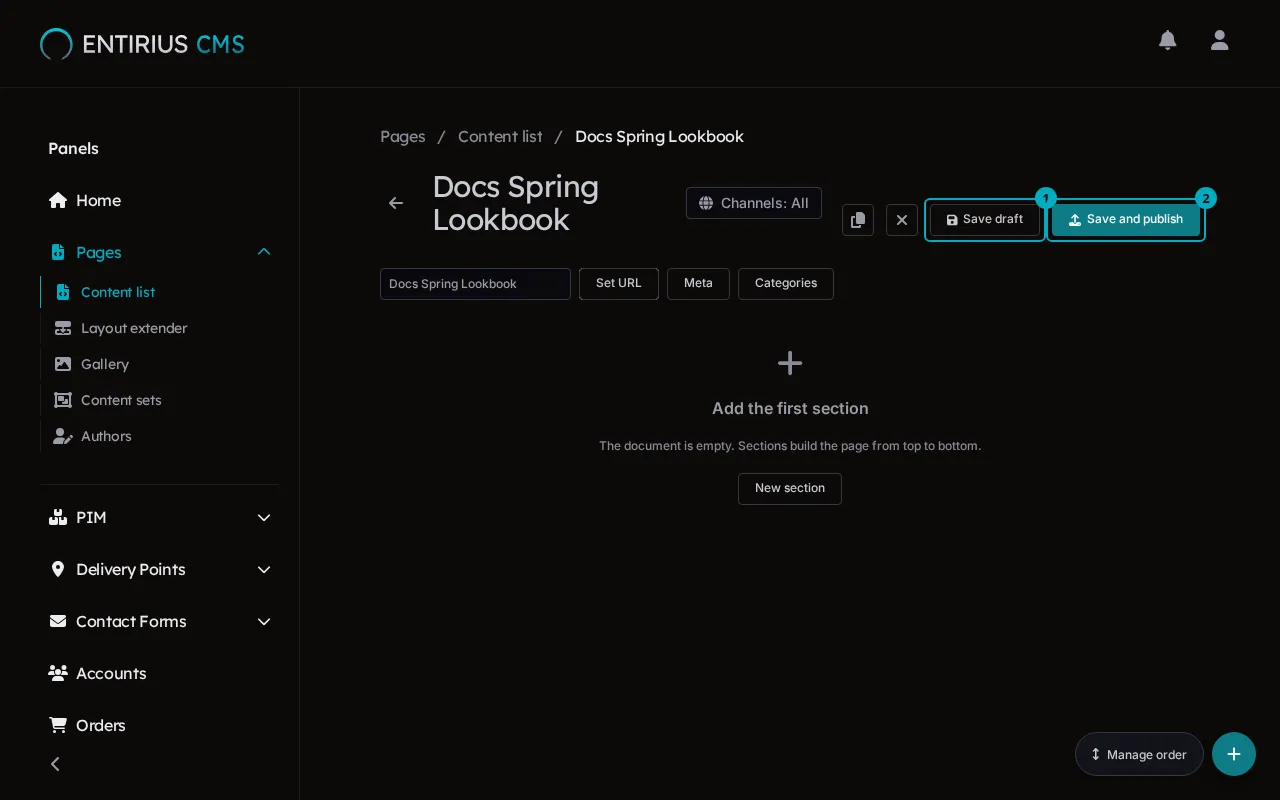
Select Create new to store the first draft; the page saves with or without sections. From then on the page offers Save draft (1) and Save and publish (2).
-
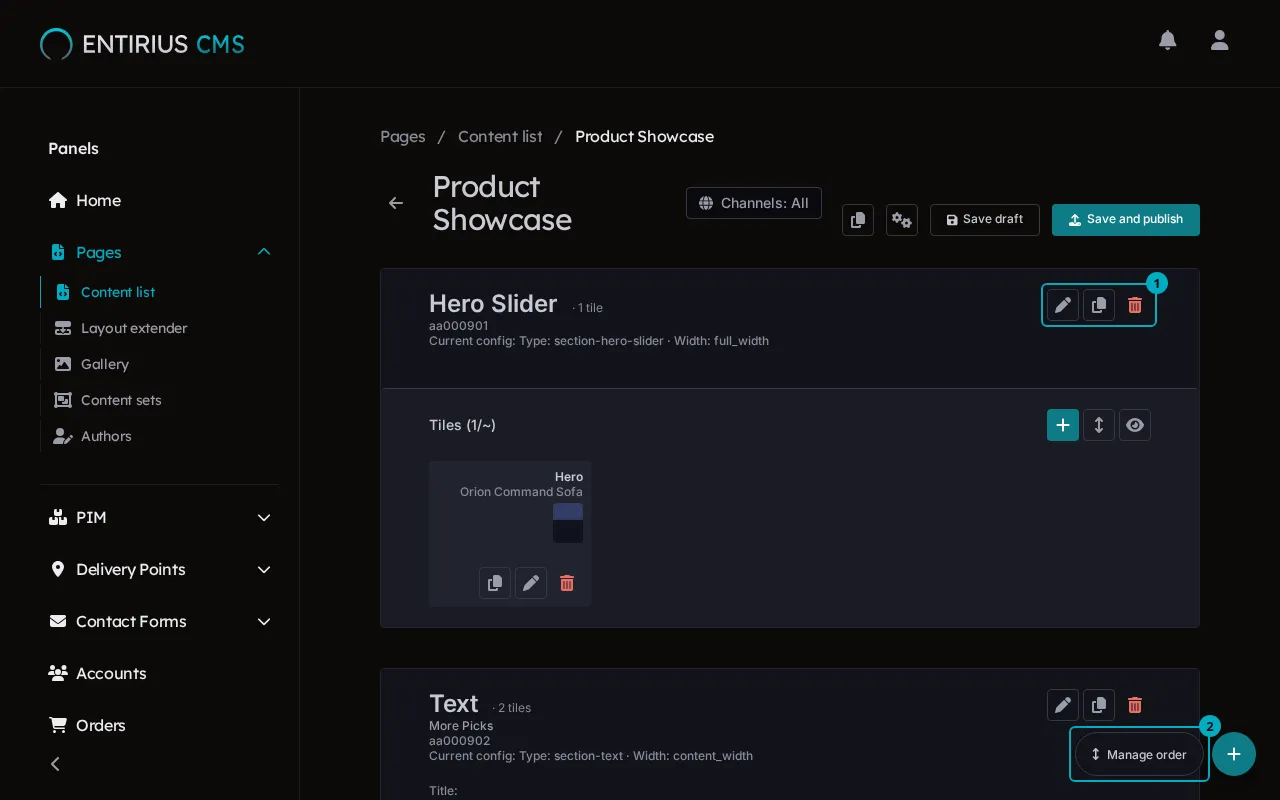
Sections stack from top to bottom. Each section has its own Edit, Copy and Delete buttons (1). Manage order (2) changes their order.
Result
Section titled “Result”The Content list shows the page with the status Draft or Published.